It is 3 a.m. and a traffic spike just paged you. You paste twelve IPs from the alert into Claude and ask: which of these are VPNs, and where are they? Thirty seconds later, the triage is done.
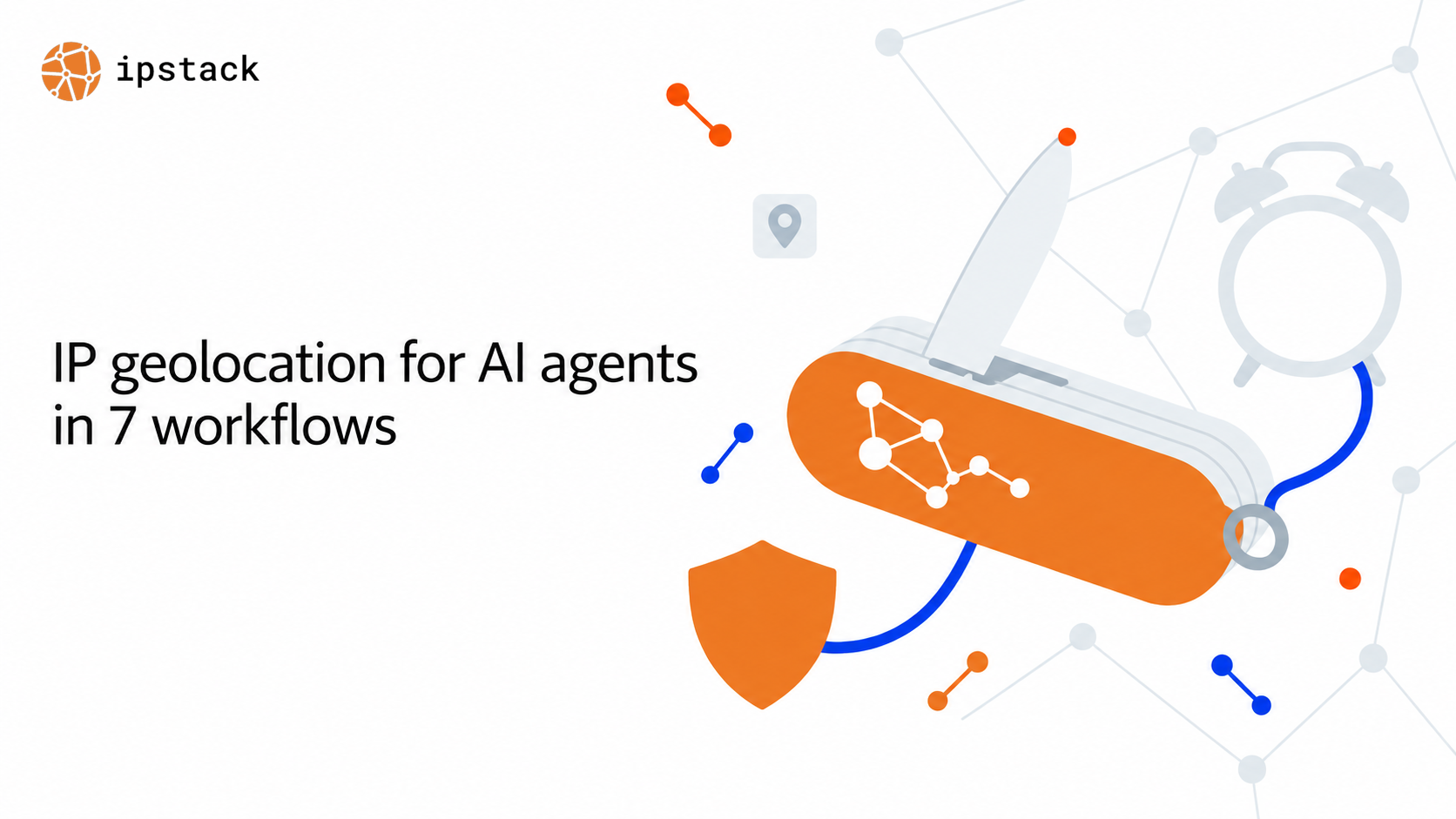
AI agents can use IP geolocation to triage security alerts, detect VPN and proxy traffic, enrich server logs, and localize user experiences. The ipstack MCP server makes this possible by giving assistants like Claude, Cursor, and ChatGPT direct tool access to ipstack’s real-time geolocation API, including single and bulk lookups (up to 50 IPs per call), threat intelligence, and ASN data, all through the Model Context Protocol.
Seven workflows follow. They are the ones that come up first in real work, they run on the connection you already have if the server is wired in, and it takes about five minutes to set up if it is not.
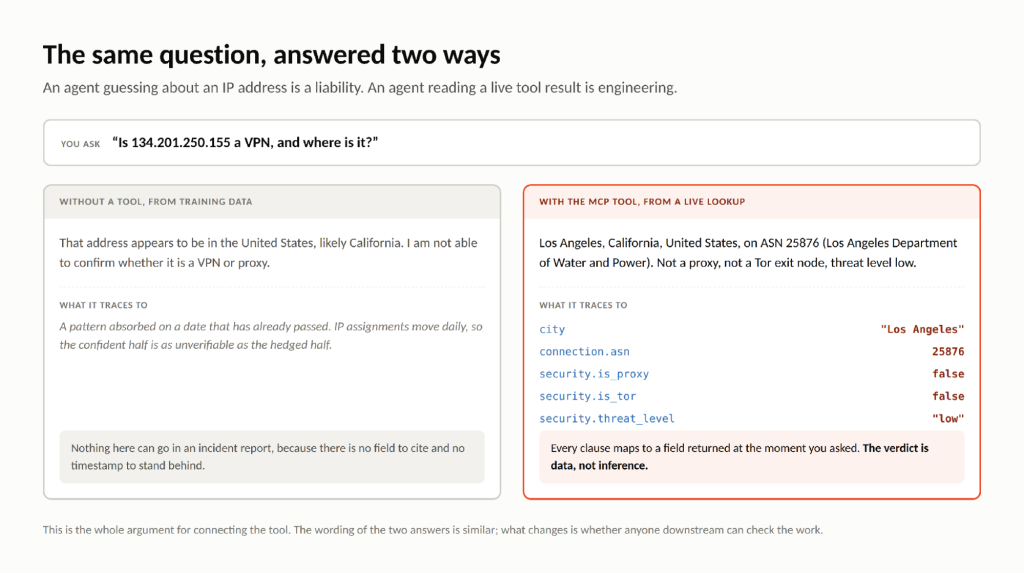
An agent guessing about an IP address is a liability; an agent reading a live tool result is engineering. The difference is a data field you can audit.
Key Takeaways
- Connected over MCP, an AI agent can geolocate any IPv4 or IPv6 address in real time instead of guessing from training data.
- Bulk Lookup handles up to 50 IPs per call, enough to triage a log excerpt in one message.
- VPN, proxy, and Tor flags come from ipstack’s security module, so agent conclusions trace to data fields.
- The same endpoint serves chat assistants, coding agents, and custom MCP compatible frameworks.
- Each workflow reads a named set of response fields, so pick the plan whose modules cover the fields you need.
The 7 Workflows at a Glance
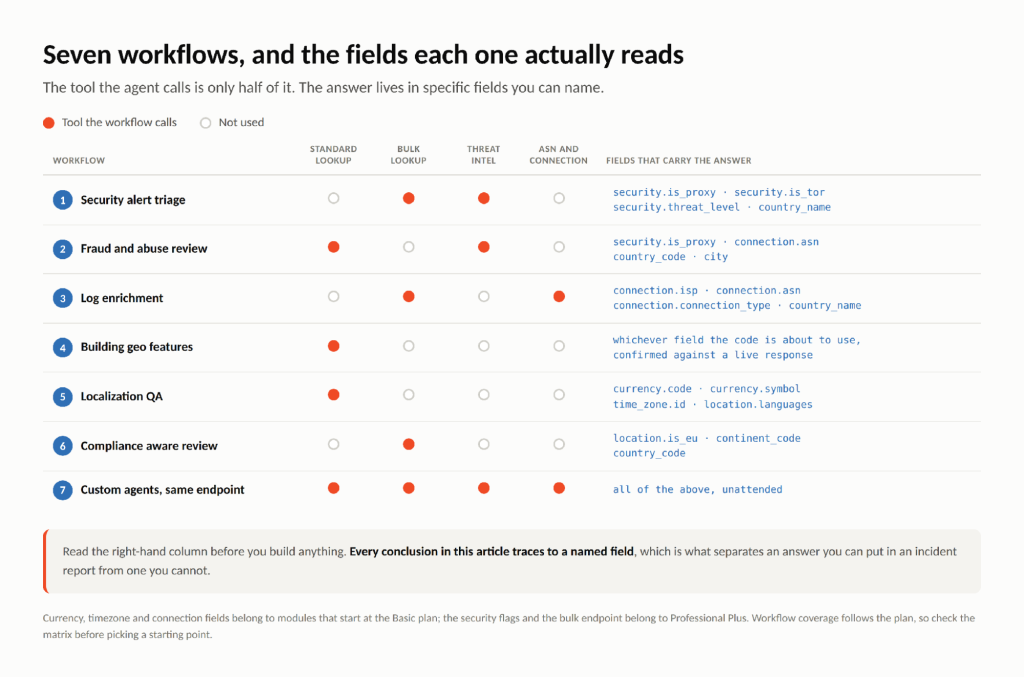
Each row is a section below. The third column is the part worth reading twice, because it tells you which tools a workflow leans on before you commit to it.
|
# |
Workflow |
ipstack tools used |
|---|---|---|
|
1 |
Security alert triage |
Bulk Lookup + Threat Intelligence |
|
2 |
Fraud and abuse review |
Standard Lookup + Threat Intelligence |
|
3 |
Log enrichment in incident response |
Bulk Lookup + ASN and Connection Data |
|
4 |
Building geo features in Cursor and VS Code |
Standard Lookup |
|
5 |
Localization QA |
Standard Lookup (currency and timezone fields) |
|
6 |
Compliance aware traffic review |
Bulk Lookup (continent and country fields) |
|
7 |
Custom agents on the same endpoint |
All four tools |
Workflow 1 — Security Alert Triage with Threat Intelligence
A WAF alert fires with a list of source IPs and no context. Instead of opening three tools, you paste the list into your assistant.
Look up these IPs and flag any that are proxies, VPNs, or Tor exit
nodes, then group the rest by country and ISP.
What comes back is a table you can paste straight into the incident channel:
IP | Country | ISP / ASN type | Flag |
|---|---|---|---|
203.0.113.10 | Netherlands | Hosting provider | VPN |
203.0.113.24 | Germany | Hosting provider | Tor exit node |
198.51.100.7 | United States | Residential ISP | Clean |
198.51.100.33 | India | Mobile carrier | Clean |
The proxy, VPN, and Tor flags come from ipstack’s security module, so the agent’s verdict is a data field in the tool result, not an inference.
That distinction is doing more work than it looks. At 3 a.m. the question is not only which addresses are suspicious but whether you can defend the call in the morning. A flag you can name and re-query is defensible; a summary that sounds confident is not.
Workflow 2 — Fraud and Abuse Review with VPN and Proxy Detection
A signup queue full of accounts whose claimed location and network location disagree is a queue you can now clear conversationally.
This signup claims to be from Germany but the request came from
134.201.250.155. Where is that IP actually located, and is it a VPN,
proxy, or Tor exit node?
That IP is in Los Angeles, California, United States, on ASN 25876 (Los Angeles Department of Water and Power). It is not flagged as a proxy, VPN, or Tor exit node, and the threat level is low. The location does not match the claimed country, so the mismatch itself is the signal to review.
Note what the agent did not do: it did not call the account fraudulent. It surfaced a mismatch and left the judgement where it belongs. Travel, corporate VPNs and family accounts all produce the same mismatch, which is why the caution below is part of the workflow rather than a footnote to it.
Geolocation is one signal in a fraud decision, not a verdict on its own.
Workflow 3 — Enrich Server Logs During Incident Response
You have a raw access log excerpt and no time to write a parsing script.
Extract the IP addresses from these log lines, look them all up, and
give me a table of country, ASN, ISP, and connection type.
Two steps collapse into one here. Extraction is the part you would normally write a regex for, and enrichment is the part you would normally write a client for. Pasting the lines does both, and the connection type column is usually where the story is: a wave of requests from hosting ASNs reads very differently from the same volume off residential and mobile carriers.
Bulk Lookup takes up to 50 IPs per call; for bigger sets, ask the agent to chunk the list and merge the tables.
Workflow 4 — Build Geo Features Faster in Cursor and VS Code
The slowest part of writing geolocation code is guessing the response shape. A coding agent with the MCP tool checks its own field names against a live lookup.
Write Django middleware that sets the user’s currency from their IP
using ipstack, then verify your field names by looking up
134.201.250.155 with the MCP tool.
The agent produces this:
					from django.conf import settings
import requests


class CurrencyMiddleware:
    def __init__(self, get_response):
        self.get_response = get_response


    def __call__(self, request):
        ip = request.META.get("HTTP_X_FORWARDED_FOR",
                               request.META["REMOTE_ADDR"]).split(",")[0]
        data = requests.get(
            f"https://api.ipstack.com/{ip}",
            params={"access_key": settings.IPSTACK_KEY,
                    "fields": "currency.code"},
            timeout=2).json()
        request.currency = data.get("currency", {}).get("code", "USD")
        return self.get_response(request)
Because the agent looked up a real IP first, it knew the field is currency.code, not currency_code, before the code ever ran.
It is a small correction, and small corrections are exactly the ones that survive review and fail in production. A misremembered field name returns a default that looks plausible on your machine and quietly bills every visitor in the wrong currency. Checking against a live response costs one tool call.
Workflow 5 — Localization QA with Currency, Timezone, and Language
Before shipping a checkout page to a new market, ask what users there will actually see.
For a visitor browsing from Tokyo, what currency and timezone should
my checkout page show? Confirm with an ipstack lookup.
A Tokyo visitor should see prices in Japanese yen (currency.code JPY, symbol ¥) and times in Asia/Tokyo (GMT+9, no daylight saving). The location.languages field returns Japanese, so the language prompt should default to ja.
The value here is having the expected answer written down before QA starts. “Tokyo shows yen” is a test case anyone can run; “localisation looks right” is not.
Workflow 6 — Compliance Aware Traffic Review
Consent banners, VAT rates, and data residency all hang on one question: is this visitor in the EU?
Classify these visitor IPs as EU or non-EU for consent purposes and
show the country for each.
The location.is_eu, continent_code, and country_code fields drive the split, and the same fields feed VAT logic at checkout.
One field doing two jobs is the reason to standardise on it early. When consent and tax both read the same source, a visitor cannot be inside the EU for one and outside it for the other, and that is one class of support ticket you never open.
Workflow 7 — Custom Agents via the Same MCP Endpoint
Everything above ran in a chat window. The same endpoint works unattended, inside any agent framework that speaks the Model Context Protocol.
Mount https://mcp.apilayer.com/mcp as a tool source with a Bearer ${env:APILAYER_MCP_TOKEN} and the four ipstack tools appear to your agent exactly as they do in Claude Desktop.
					{
  "mcpServers": {
    "apilayer": {
      "url": "https://mcp.apilayer.com/mcp",
      "headers": {
        "Authorization":Bearer ${env:APILAYER_MCP_TOKEN}
      }
    }
  }
}
Nothing about the configuration changes when the caller stops being a person. That is the argument for prototyping in chat: the triage conversation you ran by hand at 3 a.m. is the same set of tool calls a scheduled agent makes at 3 a.m. next month, and you have already seen what good output looks like.
Latency, Quotas, and Fallbacks
- ipstack answers lookups in milliseconds on 99.9% uptime infrastructure, which is fast enough for interactive agent conversations.
- Agent workloads burn quota faster than humans: one triage conversation can spend 50 lookups. Size the plan accordingly.
- Design agents to degrade gracefully: if a lookup fails, report the failure instead of guessing, and cache repeated lookups within a session.
The third bullet is the one to build first. An agent that says “the lookup failed” is doing its job; an agent that fills the gap from memory has quietly undone the reason you connected the tool. Say so in the system prompt, in those words.
Worth checking module coverage at the same time. Location fields return on any plan, currency, timezone and connection data start at Basic, and the security flags and bulk endpoint come with Professional Plus. Workflows 1, 3 and 6 lean on bulk lookups, and 1 and 2 read the security flags, so match the plan to the workflows you plan to run first.
Frequently asked questions
Can AI agents do IP lookups?
Yes, when given tool access. Through the ipstack MCP server, agents such as Claude, Cursor, and any MCP compatible framework can look up IPv4 and IPv6 addresses in real time and receive structured location, ISP, ASN, and threat intelligence data instead of guessing from training data.
How do I give my AI agent geolocation data?
Connect it to the ipstack MCP server. Point the agent’s MCP configuration at https://mcp.apilayer.com/mcp with an ipstack API token, or run npx @apilayer/mcp-server locally. The agent then gains four tools covering single lookups, bulk lookups, threat intelligence, and ASN data.
Can an AI agent detect VPN traffic?
Yes. ipstack’s Threat Intelligence tool returns explicit flags for proxies, VPNs, and Tor exit nodes from its security module. Because each flag is a data field in the tool result, the agent’s conclusion is auditable rather than inferred, which matters for fraud and abuse decisions.
How many IPs can one MCP call process?
The Bulk Lookup tool processes up to 50 IP addresses per call. For larger sets, such as a full log file, have the agent chunk the list into groups of 50, run sequential calls, and merge the results into one summary table.
Try ipstack free
IP-to-location, ASN, ISP, time zone and threat data from one endpoint. Get a key and make your first call in under a minute.

Karam Alsalhani
All articles by Karam →