If you’ve ever searched for “how to get a dynamic IP address”, chances are you were trying to change your IP, fix a network issue, or understand whether you really need a static IP at all.
The good news: most home and mobile internet connections already use dynamic IP addresses and in many cases, you can just refresh or change your IP safely in just a few minutes.
This guide will walk you through everything you need to know, step by step:
- What a dynamic IP address actually is
- How dynamic IPs are different to static IPs
- How to check if your IP is dynamic
- Five proven methods to get or refresh a dynamic IP
- Why your IP sometimes doesn’t change
- When a static IP actually makes more sense
By the end, you’ll know exactly what setup you have, and what to do next.
Key takeaways
- A dynamic IP address is automatically assigned by your ISP and can change over time.
- Most residential, mobile, and Wi-Fi connections use dynamic IPs by default.
- Restarting your modem or renewing your DHCP lease often refreshes your IP.
- Some ISPs use sticky IPs or CGNAT, which limits how often your IP changes.
- Static IPs are only necessary for specific use cases like hosting servers or remote access.
What Is a Dynamic IP Address?
A dynamic IP address is a public IP assigned temporarily to your device or router by your Internet Service Provider (ISP). Instead of being permanent, it’s leased to you for a period of time and may change when that lease expires.
This assignment process is handled by DHCP (Dynamic Host Configuration Protocol).
Dynamic IP Address Meaning
Think of it like a hotel room number:
- You get a room when you check in
- It works fine while you’re staying
- The room number might change the next time you check in
For ISPs, dynamic IPs are easier to manage, more cost-effective, and more secure for everyday users.
Dynamic IP vs Static IP (Quick Comparison)
Here’s a simple side-by-side comparison to help you decide what fits your needs.
Feature | Dynamic IP | Static IP |
Changes over time | ✅ Yes | ❌ No |
Assigned automatically | ✅ Yes (DHCP) | ❌ Manual |
Cost | Usually free | Often extra |
Best for | Home users, mobile, browsing | Servers, CCTV, remote access |
Security exposure | Lower | Higher |
If you’re browsing, streaming, gaming, or working remotely, a dynamic IP is usually the better and safer choice.
How to Check If Your IP Is Dynamic
Before trying to change your IP, it’s important to confirm what type of IP you currently have.
Public IP vs Private IP (Quick Clarification)
- Private IP: Used inside your local network (e.g., 192.168.x.x)
- Public IP: The address visible to the internet and websites
Only your public IP matters here.
Step 1: Check Your Current Public IP
You can check your public IP using online IP lookup tools or IP data APIs.
Note your IP address and the time you checked it.
Step 2: Check Your Router’s WAN IP
Log in to your router’s admin panel and look for:
- WAN IP
- Internet IP
- External IP
If this matches your public IP, you’re not behind an extra NAT layer.
Step 3: Recheck After a Change
After restarting your router or renewing the DHCP lease, check your public IP again.
What the Results Mean
- IP changed → You have a dynamic IP
- IP stayed the same → You may have a sticky IP, long lease, or CGNAT
- Router WAN IP is private → Your ISP is using CGNAT
How to Get / Refresh a Dynamic IP (Step-by-Step Methods)
Here you will get an idea how to get/refresh a dynamic IP. Start with Method 1 and move down only if needed.
Method 1: Restart Your Modem/Router (Most Common)
Best for: Home broadband users
Difficulty: Easy
Time: 2 to 10 minutes
Steps:
- Turn off your modem and router
- Unplug them from power
- Wait 5 to 10 minutes
- Plug them back in and reconnect
- Check your public IP again
Why this should work:
When your router reconnects, your ISP may assign a new DHCP lease with a different IP.
Tip: A quick reboot (10 to 20 seconds) often isn’t enough. Give it a few minutes.
Method 2: Release & Renew IP (Windows & macOS)
Best for: PCs connected directly to the router
Difficulty: Easy–Medium
On Windows
1. Open Command Prompt as Administrator
Run:
ipconfig /release
ipconfig /renew
On macOS
1. Go to System Settings → Network → Wi-Fi/Ethernet
2. Open TCP/IP
3. Click Renew DHCP Lease
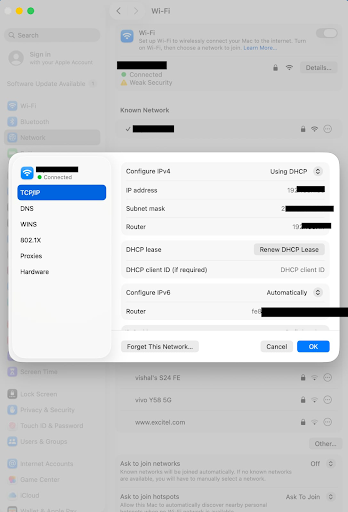
This refreshes your local DHCP lease. If your ISP’s lease also resets, your public IP may change.
Method 3: Change MAC Address (Advanced + Caution)
Best for: Advanced users
Risk: Medium
ISPs often associate IP leases with your router’s MAC address.
Changing it can trigger a new IP assignment.
Options:
- Enable MAC cloning in router settings
- Use a different device MAC temporarily
⚠️ Caution:
- Some ISPs restrict MAC changes
- Frequent changes may violate ISP terms
Only use this if simpler methods don’t work.
Method 4 — Contact Your ISP (Sticky IPs & CGNAT)
Best for: When IP never changes
Difficulty: Easy
Ask your ISP:
- Is my IP dynamic or static?
- Do you use CGNAT?
- Can you reset my DHCP lease?
In many cases, they can refresh or reassign your IP manually.
Method 5: Use a Different Network (Instant Change)
Best for: Immediate IP change
Examples:
- Switch from Wi-Fi to mobile data
- Use a hotspot
- Connect to a different ISP or location
This guarantees a new public IP, but it’s temporary.
Why Your IP Might Not Change (Common Reasons)
If you’ve tried restarting your router or renewing your connection and your IP address still hasn’t changed, it doesn’t necessarily mean something is wrong. In many cases, ISPs intentionally make dynamic IPs behave like “sticky” IPs, meaning the address is technically dynamic but rarely rotated unless there’s a network-level reason to do so.
Another common reason is a long DHCP lease duration, where your ISP assigns the same IP for days or even weeks before allowing a change.
Some providers also use Carrier-Grade NAT (CGNAT), which places multiple users behind a shared public IP, making individual IP changes impossible from the user side. If you’re on a business internet plan or a static IP package, your IP is designed not to change at all. Finally, if you restart your router too quickly, it may reconnect before the old lease expires, resulting in the same IP being reassigned.
Troubleshooting Checklist (Fast Fixes)
Before giving up, try this:
- Power off router for 10+ minutes
- Restart modem and router separately
- Confirm WAN IP isn’t private
- Try renewing IP during off-peak hours
- Contact ISP support
When You Should Use a Static IP Instead
A static IP address is worth considering only when your setup truly depends on having the same public IP at all times. This typically applies if you host a website or application server from your home or office network, rely on remote desktop or VPN access that needs a fixed endpoint, or manage CCTV, smart home, or IoT devices that must be reachable externally without reconfiguration.
Static IPs are also useful when you need consistent IP-based firewall rules or allowlisting for security or enterprise systems. Outside of these specific scenarios, a static IP usually adds unnecessary cost and complexity, making a dynamic IP the better choice for most users due to its simplicity, lower exposure, and built-in rotation benefits.
For everyone else, a dynamic IP is simpler, cheaper, and more secure.
IP Addresses with APILayer (IPStack & Beyond)
Knowing how to change or refresh an IP address is useful, but in many real-world applications, the real value comes from understanding what that IP represents.
This is where IP data platforms like APILayer’s ipstack come into play.
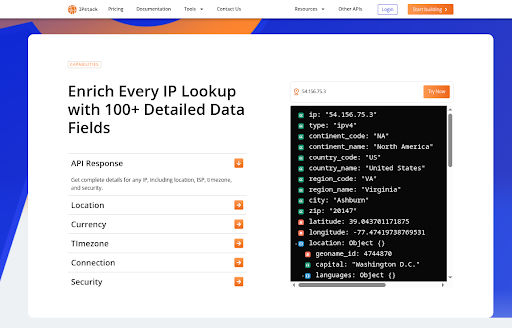
Instead of treating an IP address as just a number, ipstack enriches it with structured, actionable context that helps teams make better decisions across security, analytics, and user experience.
What ipstack Can Tell You About an IP
With a single API call, ipstack can provide details such as:
- ISP and organization (who owns the network)
- ASN (Autonomous System Number) for network-level analysis
- Approximate location (country, region, city, timezone)
- Network type (mobile, broadband, hosting, proxy)
- Connection metadata useful for diagnostics and filtering
This enrichment works whether the IP is dynamic or static, making it especially useful in environments where IPs change frequently.
Real-World Workflow Example: From IP to Insight
Here’s how ipstack and related APILayer products are commonly used in practice.
1. Fraud & Risk Checks
Dynamic IPs are common, but certain patterns aren’t.
By enriching incoming IPs with ISP, ASN, and network type data, teams can:
- Flag traffic from suspicious hosting providers
- Detect abnormal IP changes during a session
- Apply risk scoring rules without blocking legitimate users
This is particularly useful for payments, account creation, and login security flows.
2. User Analytics & Segmentation
IP enrichment enables smarter analytics without relying solely on user-provided data.
Examples:
- Segment users by region or country
- Analyze performance issues by ISP or ASN
- Understand how many users are on mobile vs broadband networks
This helps product and growth teams optimize experiences based on real network conditions.
3. Localized Content & Personalization
IP-based context allows applications to adapt automatically:
- Show region-specific content or language
- Preselect country or timezone in onboarding flows
- Customize pricing, availability, or legal notices
All of this can happen instantly, without asking the user for extra input.
4. Support & Network Troubleshooting
For support and operations teams, IP data is invaluable.
Example: “Users on ISP X in Region Y are reporting connection issues.”
By grouping sessions by ISP or ASN using ipstack data, teams can quickly identify whether a problem is:
- User-specific
- ISP-related
- Regional
- Infrastructure-related
This shortens investigation time and improves incident response.
Why This Matters for Dynamic IPs
Because dynamic IPs change over time, context matters more than the address itself.
Platforms like APILayer’s ipstack help teams:
- Treat IPs as signals, not identifiers
- Adapt to IP churn without losing insight
- Build resilient systems that work with real-world networks, not against them
In short, whether you’re refreshing a dynamic IP or analyzing thousands of them, IP enrichment turns raw addresses into usable intelligence.
Frequently asked questions
Does rebooting the router change your IP?
Sometimes. It depends on your ISP’s DHCP lease policy.
How often do dynamic IPs change?
Anywhere from hours to months, it varies by ISP.
Is changing your IP legal?
Yes, when done through normal ISP provided methods.
Can websites track me with a dynamic IP?
They can still see your IP, but changes reduce long-term tracking accuracy.
How do I know if my ISP uses CGNAT?
If your router’s WAN IP is private (e.g., 10.x.x.x), CGNAT is likely in use.
Try ipstack free
IP-to-location, ASN, ISP, time zone and threat data from one endpoint. Get a key and make your first call in under a minute.

Karam Alsalhani
All articles by Karam →